What ClipBolt does.
ClipBolt saves what you copy, helps you find it, and pastes it into the app you are using. These are the features available in the Mac app.
Available now on macOS Windows, Linux, Android, iOS, the Chrome extension, and the web app are coming soon.
Every copy saved, ready to bring back.
You copy an invoice number, then copy an email address over it. ClipBolt keeps both, along with text, links, code, and images, so you can paste either one later.
-
Saved as you copy
Copy text, links, code, or images as you normally do. Every item is added to your clipboard history automatically.
-
Text, code, and images
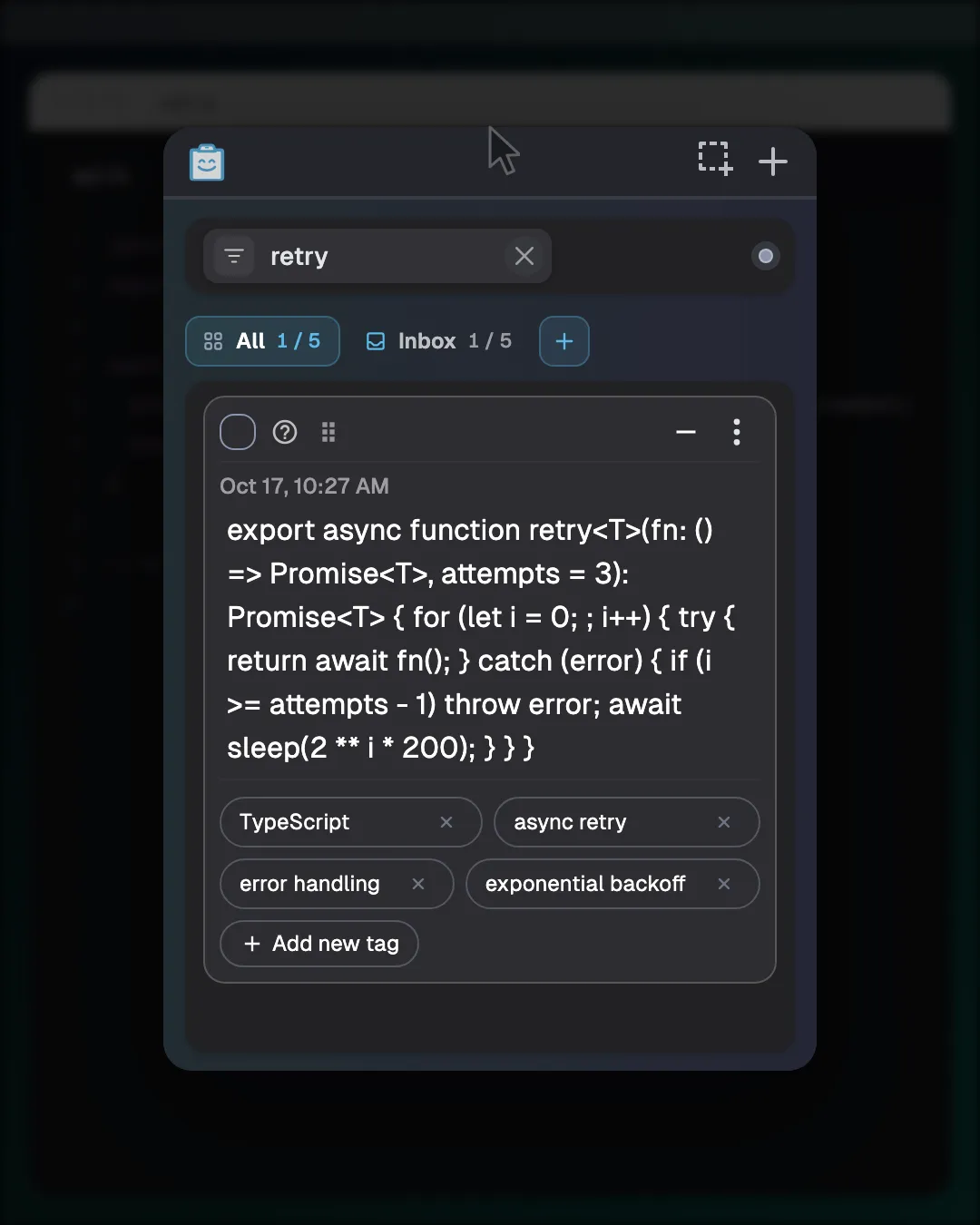
From a terminal command to a receipt photo or a meeting link, your clipboard history keeps all of them together.
-
Scroll and bring back
Browse past copies in the order you copied them, and paste an item you need again.
Keep the formatting, or paste plain text.
Copying a table or a styled paragraph often loses its layout when you paste. ClipBolt keeps rich clipboard formats such as bold text, lists, Excel tables, and Figma copies. Paste the original styling or switch to plain text.
Video showing formatted and plain text pasting
-
Rich formats kept intact
ClipBolt keeps plain text, images, HTML, RTF, tables, Word, Excel, Figma, and Excalidraw copies when you copy.
-
Paste in original style
Keep bold headings, working links, bulleted lists, and table cells intact when moving work between your documents and design tools.
-
Switch to plain text
When you only want the raw words, paste any saved clip as clean plain text.
Type what you remember, find any clip.
Search your clipboard history with words from a clip. ClipBolt checks clip text, AI tags, image descriptions, and text inside images, and updates results as you type.
-
Search inside screenshots
Find a screenshot or image by typing words that appear inside it, or search by the AI description of the picture.
-
Match by AI tags
Type a topic like invoice, travel, or python to find related clips by topic, even when the exact words are absent.
-
Results as you type
Matches update with every keystroke across your saved text, links, code, and images so you can find the right clip.
One shortcut, your clipboard history.
Switching windows to find a clip breaks your focus. Set a keyboard shortcut in Settings, press it in any app, and your clipboard history opens with search ready. Pick a clip to paste it into the active window. The shortcut shown in the demo is configured for that example.
-
Pick your own keys
Choose the key combination in Settings so it works alongside the shortcuts you already use.
-
Opens with search ready
Press your keyboard shortcut and start typing to filter your clipboard history while your hands stay on the keyboard.
-
Auto-paste or copy again
Select a clip to paste it directly into the app you were using, or turn off auto-paste to copy it instead.
Group related clips, pin your daily favorites.
Some clips belong to one project, and others you paste every day. Group related copies into collections for a client, a research topic, or a draft. Pin the clips you use most so they stay at the top of your history.
-
Collections for every project
Gather research quotes, design links, and code snippets for a client or draft into one collection.
-
Pin clips to top
Keep your calendar link, billing address, or saved reply pinned at the top as new copies arrive.
-
Built for repeat work
Open your pinned items and project collections instead of typing the same replies and boilerplate again.
Tagged by AI, organized as you copy.
ClipBolt adds searchable tags to every clip and detects the programming language of copied code. Add your own tags or remove any tag. Your history is stored on your device and syncs when you sign in. Automatic labels send new clips to OpenAI, and unresolved item types go to TypeSafe, once you allow AI features. You can turn them off in Settings. Read the Privacy Policy.
-
Automatic AI tags
Every clip gets descriptive tags automatically so you can find it by topic whenever you need it.
-
Recognizes code languages
Copy a function or terminal command and ClipBolt identifies the programming language, so your snippets stay easy to find.
-
Edit tags any time
Add custom tags that match how you work, or remove any tag to keep your labels tidy.
Fix any clip before you paste it.
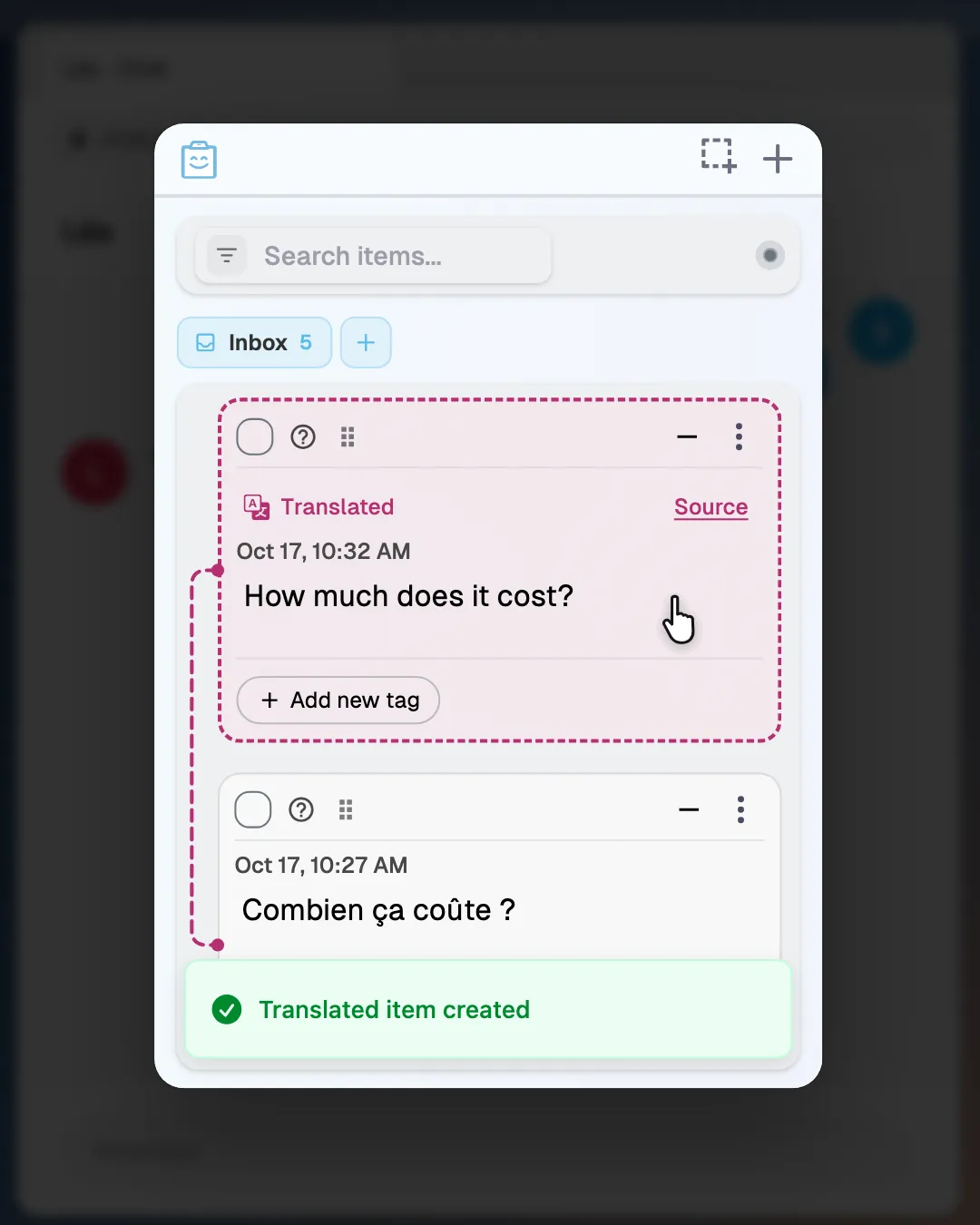
Copied text can be in the wrong tone, in another language, or inside an image. Use the built-in AI tools to rephrase text, translate it, extract text from images, or describe a picture. AI features send content to OpenAI, and to TypeSafe for item types, once you allow them for your account. Read the Privacy Policy.
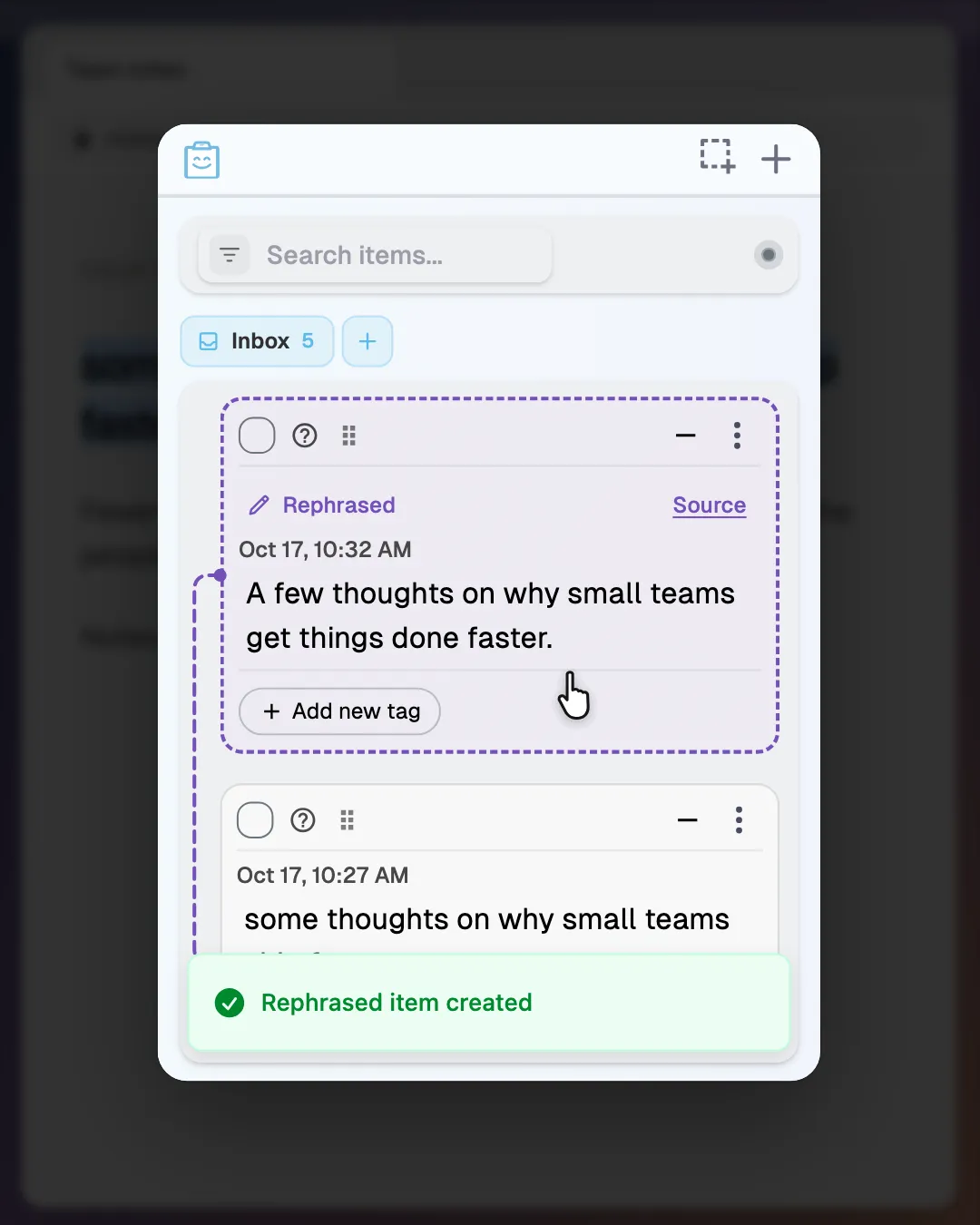
Turn rough notes into a polite reply, shorten a long paragraph, or adjust the tone before you paste.
-
Rewrite and translate fast
Adjust the tone or length of rough text, or translate any copied clip right inside ClipBolt.
-
Get text from images
Pull editable words out of screenshots, photos, and slides with OCR, or generate clear image descriptions for alt text and captions.
-
Saved with the clip
Every AI result stays attached to your clip, and extracted text and image descriptions become part of your searchable clipboard history.
Capture your screen, search the words inside.
Capture any part of your screen from the ClipBolt window. The screenshot is added to your clipboard history, ready for OCR, descriptions, and search, instead of piling up on your desktop.
Demo of screen capture and text extraction
-
Capture from ClipBolt
Select a region of your screen in the ClipBolt window and keep screenshot files off your desktop.
-
Pull out the text
Extract text from a screenshot to reuse code from a video, numbers from a chart, or a quote.
-
Find screenshots by words
Search for a screenshot days later by typing any word that appeared inside the image or in its AI description.
Pick your clips, ask AI across them.
Pasting snippets into a chat one by one is slow. Select up to 100 clips, including up to 20 images, and ask AI to summarize them, compare sources, or write a draft. AI features send content to OpenAI, and to TypeSafe for item types, once you allow them for your account. Read the Privacy Policy.
Multi-clip selection and AI chat window
-
Up to 100 clips
Select up to 100 text clips, links, and code snippets for a single AI conversation.
-
Include up to 20 images
Add up to 20 screenshots or photos alongside your text clips so you can ask questions about charts, receipts, and notes.
-
Summarize, compare, or draft
Ask for a quick summary of research clips, compare pricing tables, or pull out the one detail you need right now.
AI agents send results to ClipBolt.
Output from AI agents often gets buried in terminal logs or chat threads. Tell an agent "clip this for me" and its plan, prompt, research result, or log arrives in your history.
Agent sending research results to ClipBolt history
-
Say clip this for me
Type "clip this for me" during an agent chat and the response is added to your ClipBolt history.
-
Save plans and prompts
Keep coding plans, prompts, research findings, and pipeline logs in your clipboard history instead of scrolling back through chats.
-
Ready when you return
Every clip sent by your agents is searchable and ready to review, edit, or paste into your editor.
Preview, edit, and export every saved clip.
Inspect rich text, link previews, and image details, edit clip text in place, save a clip as a file, or select several clips to delete together.
Clip preview pane with edit and export
-
Rich previews and details
See formatted text, link previews, and images alongside their extracted OCR text and AI descriptions in the preview pane.
-
Edit or save files
Fix a typo inside a text clip before pasting, or save any clip as a text or image file.
-
Clean up in bulk
Select multiple clips and delete them together after finishing a task.
Set up ClipBolt the way you work.
Pick a light or dark theme, launch ClipBolt at login, set your keyboard shortcut, and choose whether selecting a clip pastes it automatically. You can also send feedback from the app.
Settings window showing theme and shortcut options
-
Light or dark theme
ClipBolt follows your system appearance by default, or you can lock it to light or dark mode in Settings.
-
Launch and paste rules
Start ClipBolt when you log in, change your shortcut, and turn auto-paste on or off.
-
Feedback inside the app
Spot a bug or have an idea for a feature? Send a report from inside ClipBolt.
Share inside your team. Keep the rest private.
Access controls decide who can open shared work. Joining an enterprise leaves a person's Inbox and private collections theirs. A shared collection opens only for the people, groups, or members you choose. AI and connections to AI tools are separate enterprise switches. Both start off, and ClipBolt's servers refuse that processing for your enterprise while they stay off. Read the Privacy Policy.
Enterprise collection audiences and membership controls
-
Private inboxes stay private
Joining an enterprise leaves someone's Inbox and private collections theirs. Owners and administrators manage membership and shared collections, not personal work.
-
Sharing stays inside your enterprise
Set a collection's audience to the people or groups you choose in your enterprise. People outside that audience cannot open it, and access follows current membership.
-
Know what removing access does
When someone leaves a group or the enterprise, access ends and further syncing to their devices stops. Copies they already saved, exported, or captured in a screenshot remain with them.
Common questions about ClipBolt
Answers about features, formats, availability, and how AI handles your data.
What is ClipBolt?
ClipBolt helps you save, organize, and reuse text, links, files, and images. It can capture what you copy, group items into collections, and help you find and use them again. You can also use optional AI tools or connect a compatible AI client.
Which devices does ClipBolt support?
ClipBolt is available now on Mac as a free public beta. Windows, Linux, Android, iOS, the Chrome extension, and the web app are coming soon. Download the Mac app from the download page.
How much does ClipBolt cost?
ClipBolt is free during the public beta. Download the Mac beta to start.
Does the AI in ClipBolt run on my device?
AI features send content to OpenAI, and to TypeSafe for item types, once you allow them for your account. Read the Privacy Policy.
Can ClipBolt find text inside screenshots and images?
Yes. ClipBolt can extract text from images and screenshots using OCR and generate AI image descriptions. When you search your clipboard history, ClipBolt checks both the words inside your images and the AI descriptions, so you can find a receipt photo or screenshot just by typing a word from it.
Which clipboard formats does ClipBolt keep?
ClipBolt preserves formatting when you copy across plain text, images, HTML, RTF, tables, Word, Excel, Figma, and Excalidraw. That means bold text, links, lists, tables, and design elements stay intact. When you are ready to use a clip, you can paste it in its original format or as plain text.
How do I get ClipBolt?
Download ClipBolt for Mac from the download page, open the DMG, and move ClipBolt to Applications. macOS may ask you to approve the app because this beta build is not Apple-notarized yet. The app is free during beta.
Free during beta
Find what you copied. Paste it again.
Download ClipBolt for Mac.
Available now on macOS Windows, Linux, Android, iOS, the Chrome extension, and the web app are coming soon.